
Unreal Engine Status Branches
Learn how to implement Status Branches in Unreal Engine to streamline multi-branch workflows, prevent versioning conflicts, and maintain file integrity across teams. This guide covers setup with practical examples and troubleshooting tips.
Unreal Engine introduced Status Branches in version 4.20, but this feature remains underutilized and less documented. I discovered its potential through the Unreal Fest talk Workflow on Fortnite.
Why Use Status Branches?
Status Branches help prevent versioning issues in multi-branch projects by ensuring users cannot lock or modify files that are outdated compared to the server’s latest changes. This feature is especially useful for teams working across multiple branches, reducing conflicts and maintaining the integrity of shared files.
Conceptual Overview
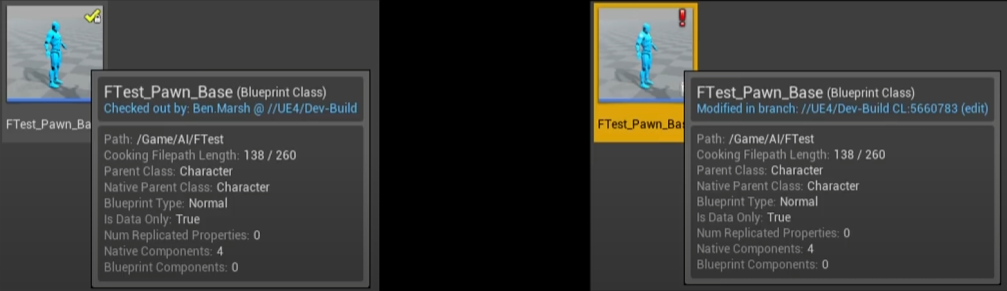
When Status Branches are set up, any branch listed in the status branch list will enforce restrictions on file checkouts. If a user’s local workspace contains outdated files compared to the server’s version in the listed branches, they will be unable to checkout those files. This ensures that changes made in higher-priority branches are preserved and conflicts are minimized.
Setup Guide
You can enable Status Branches with both Git and Perforce. The setup process is straightforward and nearly identical for both providers.
Step 1: Create a Custom UUnrealEdEngine Subclass
- Add an
UUnrealEdEnginesubclass to an editor-only code module. While it’s possible to place it in a non-editor module, doing so requires guarding it withWITH_EDITORmacros to avoid runtime issues.
Step 2: Override the Init Function
Override the Init function in your subclass and add the following code:
#include "ISourceControlModule.h"
#include "ISourceControlProvider.h"

void UMyEdEngine::Init(IEngineLoop* InEngineLoop)
{
    Super::Init(InEngineLoop);

    // Register state branches
    const ISourceControlModule& SourceControlModule = ISourceControlModule::Get();
    {
        ISourceControlProvider& SourceControlProvider = SourceControlModule.GetProvider();

        // Order matters: Higher branches are stabler and manually promoted upwards.
        const TArray<FString> Branches = {"//ProjectDepot/development", "//ProjectDepot/main"};
        SourceControlProvider.RegisterStateBranches(Branches, TEXT("Content"));
    }
}
Notes:
-
For Git, replace
//ProjectDepot/mainwith the equivalent Git branch name, e.g.,origin/main. -
The second argument in
RegisterStateBranchesspecifies the relative content path, which is typicallyContent.
Step 3: Update DefaultEngine.ini
Edit the DefaultEngine.ini file in your project’s Config folder to ensure the engine recognizes your custom UUnrealEdEngine class:
[/Script/Engine.Engine]
UnrealEdEngine=/Script/MyModule.MyUnrealEdEngine
When referencing classes in configuration files, omit the U prefix. For example, UMyUnrealEdEngine should be written as MyUnrealEdEngine.
Step 4: Understand Branch Hierarchy
In the example above, //ProjectDepot/main is the highest-tested stream. Changes in higher-priority branches, like main, take precedence and propagate downward to lower branches, such as development. Ensure your branch hierarchy aligns with your team’s workflow.
Step 5: Adjust Module Loading Phase
If you implement this class in an editor-only module, set its loading phase to Default in your .uproject file to avoid loading issues:
{
    "Name": "MyEditorModule",
    "Type": "Editor",
    "LoadingPhase": "Default"
}
Debugging and Troubleshooting
-
Issue: The editor fails to recognize the custom
UUnrealEdEngineclass.- Solution: Double-check the
DefaultEngine.iniconfiguration and ensure the module’s loading phase is set correctly.
- Solution: Double-check the
-
Issue: Branch hierarchy behaves unexpectedly.
- Solution: Verify the order of branches in the
RegisterStateBranchescall. Higher-priority branches should be listed last.
- Solution: Verify the order of branches in the
Conclusion
Status Branches are a powerful yet underutilized feature in Unreal Engine that can significantly enhance your team’s workflow by reducing conflicts and preserving file integrity. By following this setup guide, you can ensure seamless integration of Status Branches into your project.